


Trace Drawing: How To Draw
4.6524.00 Reviews
App Specs
- Version
- 4.1.1
- Updated On
- License
- Free
- Downloads
- 10,000,000+
- Developer
- GeniusTools Labs
- Categories
- Art & Design
- Platform
- Android
Screenshots
 Analysis by AppCompare
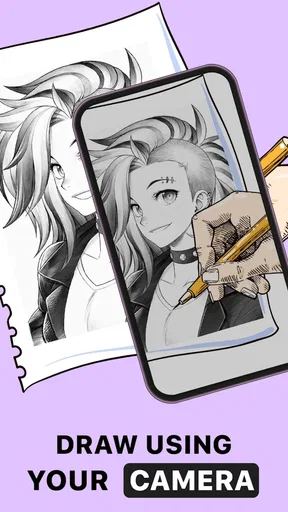
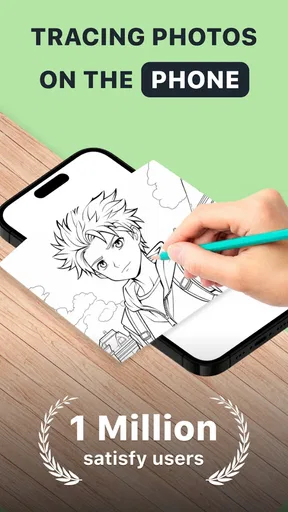
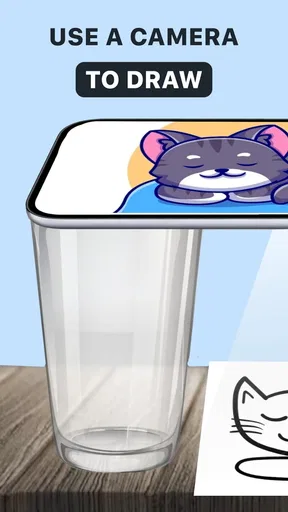
I think of AR Drawing: Trace Anything as a practical bridge between finding an image you like and getting its outline onto paper or another surface. It is an art and design app from GeniusTools Labs, and its approach is straightforward: use a camera view and a reference image to guide your hand as you draw. That makes it less about creating a finished digital illustration on the phone and more about helping you make something by hand.
Deciding whether tracing suits your project
Before choosing any tracing tool, I’d ask what I want the phone to do. If I need layers, brushes, undo history and precise digital edits, a conventional drawing app is the more natural fit. If my goal is to transfer a reference onto a physical surface, AR Drawing has a clearer purpose. It can help a beginner get proportions and placement started without asking them to sketch everything from memory.
The main trade-off is that tracing gives you guidance, not a finished artwork. You still choose the pressure, line quality, color and detail, and a projected outline cannot make those decisions for you. I find that useful rather than disappointing: the app lowers the barrier to starting, while the result still depends on the person drawing.
A small setup choice that makes tracing easier
For a smoother session, I’d choose the drawing surface before choosing the image. A small, stable sheet is easier to keep aligned than a large or flexible object, especially when you are learning how the camera-guided view behaves. If the reference has too much detail for the available space, simplify the goal: trace the broad silhouette first, then add only the features that will remain legible at the final size.
Lighting and hand position matter too. A bright, evenly lit workspace makes it easier to see both the surface and the reference, while a phone that shifts during tracing can make alignment frustrating. I would set the device securely, check the composition from the angle I plan to draw at, and avoid moving the surface once I begin. Those small preparations can save more time than repeatedly adjusting the image mid-sketch.
Getting Started with AR Drawing
First things first, let's dive into what makes AR Drawing: Trace Anything a standout tool for both aspiring and seasoned artists. The setup is as smooth as butter. Once you download the app, available on both Android and iOS, you can get started right away. The user interface is intuitive, offering a clean and simple design that doesn’t intimidate you with too many options.
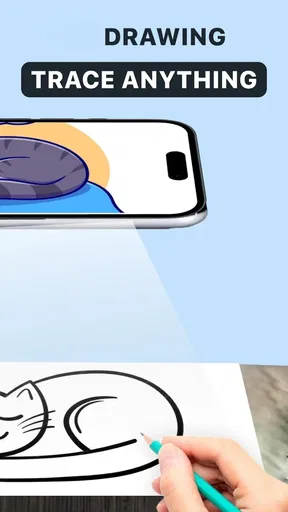
The magic begins when you point your camera at a blank surface. The app lets you choose from a variety of images or upload your own. It then uses augmented reality to project the image onto your chosen surface. All you need to do is trace. Sounds like magic, right? Well, it kind of is.
Worth Reading Before You Choose

Flipboard Shows What News Apps Must Do Beyond the Feed

Switching to Android Auto Means Rethinking Your Driving Routine

Google Calendar Makes a Crowded Week Easier to Manage

Ludo King Makes the Most of the Minutes Between Plans

Baby Panda World Brings Quick Play to Modern Phones, but Its Game Library Feels Busy

ESPN’s Live Game View Makes Following Close Games Easier
Features that Make It Shine
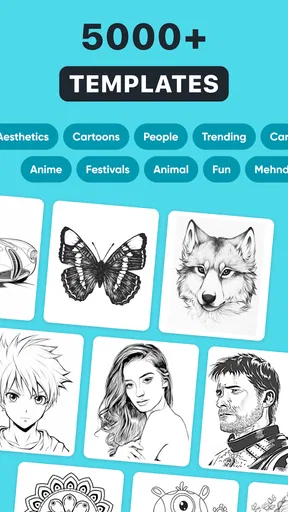
Let’s talk features because this app has a bunch that are worth mentioning. For starters, it offers a wide array of templates ranging from simple line art to more complex sketches. Whether you’re into landscapes, portraits, or abstract designs, there’s something here for everyone.
One of the most impressive features is the ability to scale and rotate images. This means you can adjust the size of your template to fit any surface, whether it’s a tiny notebook or a massive canvas on your wall. The flexibility is a game-changer, allowing you to customize your artwork to your liking.
Another cool aspect is the adjustable transparency. You can tweak the opacity of the projected image, making it easier to see your lines and ensuring that your final art piece is exactly how you imagined it.
Using it for a quick everyday project
A realistic use for this kind of guidance is making a handmade birthday card when you have an idea but do not trust yourself to draw the outline freehand. I would pick a simple motif, fit it to the card, and trace only the main contours before adding the lettering and color myself. The tracing view helps with placement; keeping the design simple leaves room for the personal touches that make a card feel handmade.
It can also suit craft projects where a clean outline matters more than perfect illustration skills: a notebook cover, a paper sign, or a basic pattern on a tote. For fabric, I would test the drawing approach on a scrap first and use a surface that stays flat. The app can guide where a line goes, but it does not remove the practical challenges of drawing on a textured or flexible material.
For a child or a casual hobbyist, the appeal is similar: a reference gives the session a starting point, and tracing can make a first attempt feel achievable. I would still treat it as a drawing aid rather than an automatic art maker. Someone who wants to learn to observe shapes and sketch them unaided may want to alternate guided tracing with freehand practice, so the reference does not become a crutch.
The Experience: What I Loved
Now, let me share my personal experience. I decided to test the app by replicating a complex mandala design on a canvas tote bag. I’m not the most confident artist, but the app made the task surprisingly doable. I was able to adjust the size to fit the bag perfectly and play with the transparency until I was comfortable with my tracing.
The process was not only easy but also incredibly satisfying. Watching the design take shape under my pen felt almost meditative. Plus, if I made a mistake, I could simply erase and start over without losing my progress.
What really stood out to me was the app’s ability to turn any image into a traceable pattern. I uploaded a photo of my dog, and within minutes, I was tracing his adorable face onto a notebook cover. Talk about personalization!
Picking the right kind of reference
One useful trick is to choose an image for its outline, not merely because it looks attractive on a screen. Strong silhouettes and clear separation between the main subject and background are easier to follow than a busy photo with many overlapping details. If I want to trace a personal photograph, I look for a pose with a recognizable shape and avoid trying to copy every shadow or strand of fur. The goal is to translate the reference into lines that make sense on the surface.
It also helps to decide in advance how much of the image I actually need. For a small notebook cover, a face or a single flower may work better than a full scene. I can crop mentally by focusing on one subject, then use the scale and rotation controls to make that subject fit. This is a simple way to avoid spending the session tracing details that will be cramped or difficult to finish.
When an image looks too complicated, I would not assume that increasing its size will solve everything. More space can help with detail, but it can also make alignment and keeping the surface steady harder. A simpler reference or a partial trace is often the better compromise. That judgment is one of the skills the app does not automate, and it has a bigger effect on the finished piece than endlessly adjusting the display.
How it compares with other drawing approaches
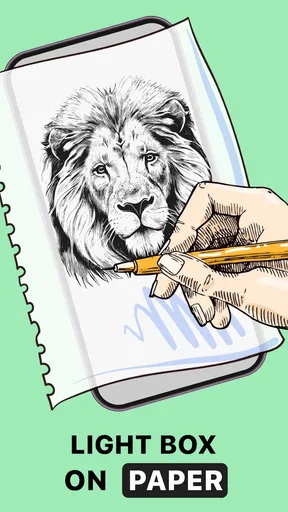
Compared with a basic grid-transfer method, AR guidance can feel more immediate because you can work from the camera view instead of drawing a grid over the reference and measuring each section. The grid approach remains useful when you want to understand proportions step by step or reproduce a larger image carefully. A lightbox or printed transfer can be a better choice when the material is thin enough to show an outline or when you want a fixed, non-camera setup.
Compared with a digital sketching app, this app is aimed at a different outcome. A digital canvas is better when I want to paint, revise colors, organize layers or keep the finished work on-screen. AR Drawing makes more sense when the final lines should be on a real notebook, card or other drawing surface. Neither approach replaces the other; the right choice depends on whether I am making a digital image or using a reference to draw by hand.
There is also the no-tool option: sketch directly from the reference. That is often best for practice and for artists who want to develop observation skills, but it can be discouraging when accurate placement is the main obstacle. I see tracing as a useful starting point for a craft or a first attempt, not as a measure of artistic ability. Someone who already draws confidently may prefer freehand work because it leaves more room to interpret the image.
What the free download means in practice
The app is free to download and rated for Everyone, which makes it easy to try as a casual drawing aid. It has a 4.6 average from around 49,000 ratings, and it has passed five million installs. Those figures suggest broad interest, but I would still judge it by whether its camera-based workflow matches the way I want to draw rather than treating popularity as a guarantee that every device or project will feel effortless.
There are in-app purchases, with items ranging from $0.99 to $99.99. I would explore the basic experience and decide whether it covers my needs before paying for anything. The price range is wide enough that it is sensible to check what a particular purchase includes and whether it solves a real problem for your workflow, rather than assuming that spending more is necessary to make a good drawing.
Its current version is 4.1.0, and it runs on Android 5.0 or later. If you are choosing between an older phone and a newer one, keep the camera-based nature of the task in mind: a stable view and comfortable positioning matter as much as the drawing idea itself. The app is also available on iOS, so the basic decision is less about the platform and more about which device you can keep steady while working.
Room for Improvement
While the app is fantastic, there are a few areas that could use some tweaking. For instance, it would be great to have a community feature where users can share their creations and get inspired by others. Also, while the app is stable on most devices, it can get a bit laggy on older models, so make sure your phone is up to date for the best experience.
The central limitation is the physical setup: keeping a phone, reference and drawing surface in a workable relationship can take patience. It is not the best fit if you want to draw while moving around, if your project surface cannot be kept steady, or if you need a polished digital illustration with editing tools. I would also look elsewhere if my main goal were structured drawing lessons; a tracing guide can help me follow a shape, but it does not explain why the shape is built that way.
There is a practical learning curve even when the controls are simple. A first session can be spent finding a comfortable viewing angle and making the reference easy to follow. I would start with a small, uncomplicated design rather than a detailed portrait, then adjust the scale and transparency before committing to a large project. That approach gives me a quick sense of whether the setup suits my space and patience.
Who I would recommend it to
I would recommend AR Drawing: Trace Anything to someone who enjoys hands-on crafts, wants help placing an outline, or feels more confident finishing a drawing than starting one from scratch. It is especially useful when a personal reference—such as a pet photo or a favorite motif—matters more than learning a full digital illustration workflow. Beginners can use it to get past the blank-page moment, while experienced artists may find it handy for transferring a design onto a physical surface.
I would skip it if I wanted my phone to produce finished art automatically, if I needed detailed digital editing, or if I planned to use it mainly on a surface that is difficult to hold still. I would also choose freehand practice over tracing when the specific aim is to improve drawing from observation. Being clear about that distinction helps set fair expectations: this is a guide for making a hand-drawn result, not a replacement for every kind of art app.
Is It Worth It?
So, is AR Drawing: Trace Anything worth a download? Absolutely. Whether you’re an art enthusiast looking to refine your skills or just someone who loves to doodle for fun, this app offers a unique, engaging way to create art. It’s like having a digital art studio in the palm of your hand.
So go ahead, unleash your creativity, and see what masterpieces you can create with this amazing tool. Remember to have fun and experiment, because that’s what art is all about!
My recommendation
My recommendation is to try it when you have a specific physical project in mind, such as a card, notebook cover or simple craft design. Start with a clear reference and a surface you can keep still, and judge the app by whether its guidance makes that one task easier. That is a more useful test than expecting it to replace a sketchbook or a full digital art program.
GeniusTools Labs has built an approachable tool around a focused idea, and the free download makes that idea easy to explore. I like it most as a confidence boost and a way to transfer a chosen image into a handmade project. If you want to draw directly on a screen or develop freehand technique without a guide, another approach will suit you better; if you want help getting an outline onto a real surface, this is a sensible app to consider.
Pros
- Easy to use interface for beginners.
- Wide variety of traceable templates.
- Supports custom image uploads.
- Real-time AR overlay for precision.
- Adjustable transparency for better tracing.
Cons
- Requires a stable surface for best results.
- Limited free content
- many templates paid.
- High battery consumption during use.
- Not suitable for very detailed artwork.
- Occasional lag in AR alignment.
FAQs for Trace Drawing: How To Draw
What is AR Drawing: Trace Anything, and how does it work?
AR Drawing: Trace Anything is an innovative app that utilizes augmented reality technology to help users trace images onto various surfaces. By superimposing digital images onto real-world views through your device’s camera, it allows you to trace over these images, making it easier to create accurate drawings. Perfect for artists, hobbyists, and educators alike, it transforms your device into a powerful drawing tool.
Is AR Drawing: Trace Anything suitable for beginners?
Yes, AR Drawing: Trace Anything is designed to be user-friendly, making it ideal for both beginners and experienced artists. The app provides step-by-step guidance and intuitive controls to help users easily navigate and utilize the tracing features. Whether you’re just starting out or honing your skills, the app offers a seamless experience suitable for all skill levels.
What devices are compatible with AR Drawing: Trace Anything?
AR Drawing: Trace Anything is compatible with most modern Android and iOS devices that support AR capabilities. Check your device specifications to ensure it has the necessary AR support. Typically, devices with ARCore (Android) or ARKit (iOS) compatibility will work seamlessly with the app, providing an optimal augmented reality experience.
Does AR Drawing: Trace Anything require an internet connection?
While the core functionality of AR Drawing: Trace Anything does not require an internet connection, some features might, such as downloading new templates or accessing online tutorials. It’s advisable to have a stable internet connection for these features, but basic tracing functions can be used offline once the app and needed resources are fully installed.
Are there any in-app purchases or subscriptions within AR Drawing: Trace Anything?
AR Drawing: Trace Anything offers a range of free features, but it also includes optional in-app purchases and subscription plans. These can provide access to premium templates, more advanced tools, or additional tutorials. Users can opt for these enhancements depending on their needs and preferences, offering flexibility in how they use the app.


